About the "Cash"
This section tracks all changes to your account balance, including deposits, spending, and refunds. It provides a clear overview of your financial status and serves as a reporting tool.
The Cash section consists of two parts: the main page and the "Accounts" section with individual account details.
Main page
Top panel:
Available Balance — the amount currently available to spend;
Pending — funds from transactions that are not yet finalized.
Chart:
Displays your available balance changes over time. The data is in UTC+0 and can be filtered by:
Last 7 or 30 days;
Current week, month, quarter, or year;
All time.
Balance top-up
The “Add funds” button can be found in the top right corner of the page.
Top-up methods available:
USDT TRC20 — created during registration;
USDT ERC20 — available on request;
USDC ERC20 — available on request;
Wire — available on request
Minimum amounts:
Crypto: 1500 USD;
Wire: 3000 USD.
What else is important:
Wallets are issued once per your company account;
You can top up via “Add funds” button or directly to the wallet address;
Funds are credited automatically within minutes — no transaction hash needed.
Additional payment methods can be discussed with your manager in a private Telegram chat.
We recommend maintaining a reserve balance in your account. When funds are insufficient, transactions will be declined, which leads to a higher Decline Rate.
"Accounts"
An account is an entity to which cards, users, and transactions are linked.
Click on an account to access its section. Here you'll find detailed cashflow information for that account.
The top widget displays:
Total balance (Cash Balance);
Available balance;
Amount on hold (Pending);
Transactions on hold (can be expanded as a list).
By default, one account is created — Main.
On the Stellar Private plan, you can create up to 5 additional accounts (sub-accounts) within your company. This is convenient for separating budgets between teams and departments.
For more details, see the Sub-accounts article.
Processed transactions
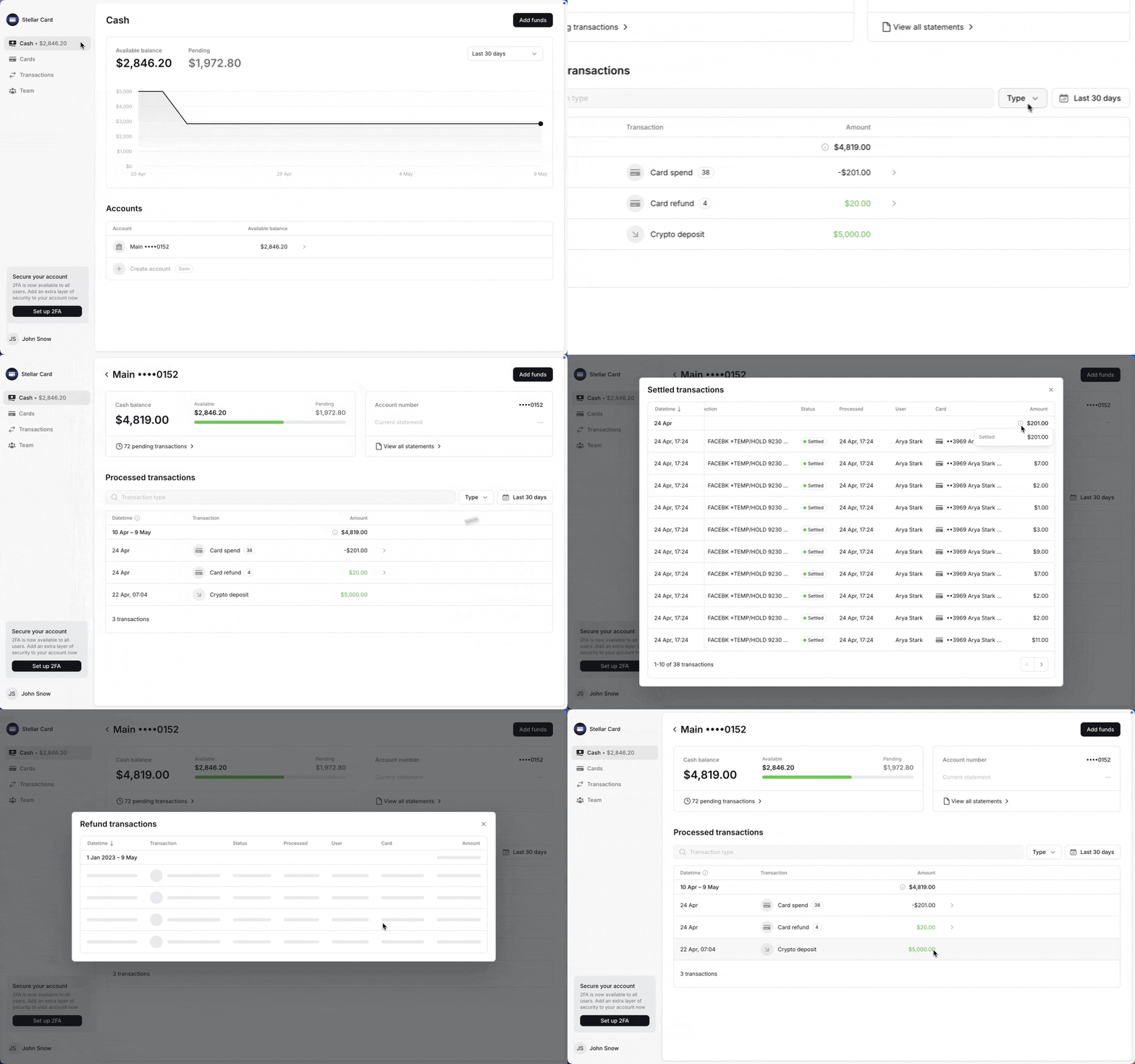
A separate table shows all balance movements — including crypto and wire deposits, fees, and more. You’ll also find a summary of completed card transactions (Settled and Refund).
The transaction date shows when the final status is received, not when the transaction was created. This is important for card transactions, since they typically take several days to reach Settled status.
Why amounts may differ across sections
That’s expected — different sections record transaction dates differently:
On the "Cash" page, transactions are displayed and calculated based on when they reach their final status;
In other sections, by the date they first appear in the system.
The "Cash" section primarily serves as a financial reporting tool, while other pages function as real-time monitoring tools for current activity. Consider this difference when comparing data between sections.
Statements
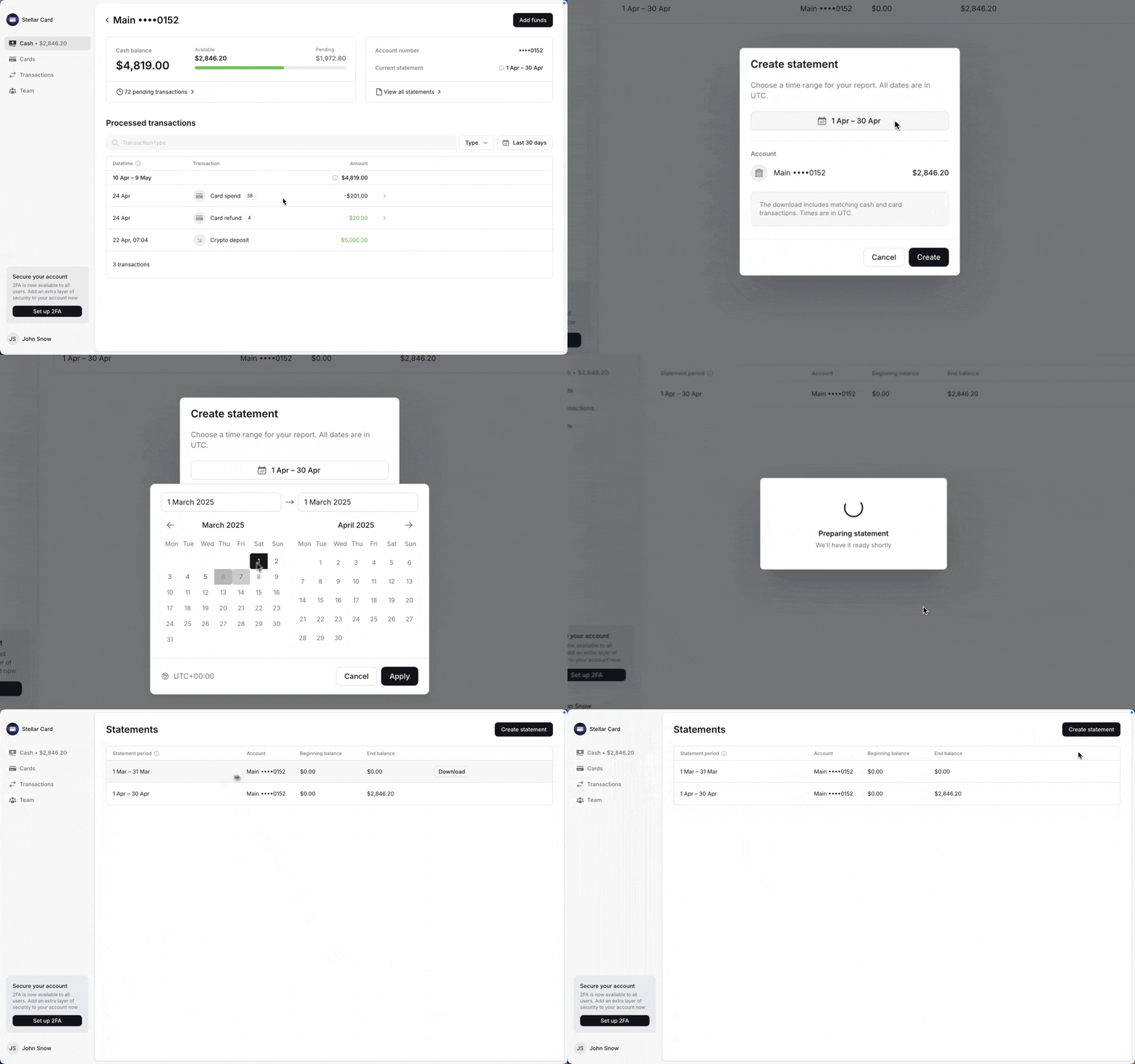
To create a statement, go to "View all statements." After clicking the create statement button, select a time period in UTC (note that the current day cannot be included since it isn't complete). The new statement will appear at the top of the list for you to download.
What's inside the export
The download comes as a .zip archive with two .csv files:
Cash Transactions — a summary statement of your account activity for the selected period, based on the Processed Transactions table;
Card Transactions — a detailed list of all card transactions from the period (formatted identically to the "Transactions" page export).
The system keeps up to 20 recent statements. Only Admins can access the "Statements" section.