About the "Transactions"
"Transactions" section
This section is the main tool for analyzing payment transactions and managing data. You can view all transactions by users and cards, apply filters, check statuses, generate reports, and analyze general statistics.
The system receives data from merchants in real time. Permissions vary by role: employees can only see data for their own cards, while administrators and financiers have access to data for all users and cards.
Widgets
At the top of the page, you'll find widgets displaying summary statistics for the selected period. The statistics update automatically when you change the filters.
The system displays the following data:
Transactions - total number of operations
Costs - total amount of operations with Pending and Settled statuses
Declined transactions - number of operations with Declined status
Declined amount - total amount of Declined transactions
Decline Rate - percentage of Declined transactions out of total transactions
The Decline Rate indicator turns red when it exceeds 10%.
Filters
Filters allow you to quickly find specific data. Transactions can be filtered by these parameters:
Transaction Status — select one or more statuses;
User — filter by name;
Card — search by last 4 digits or card name;
Period — time period in the calendar.
If you can't find a specific transaction in the table, verify that it hasn't been filtered out by your current filter settings.
Transactions table
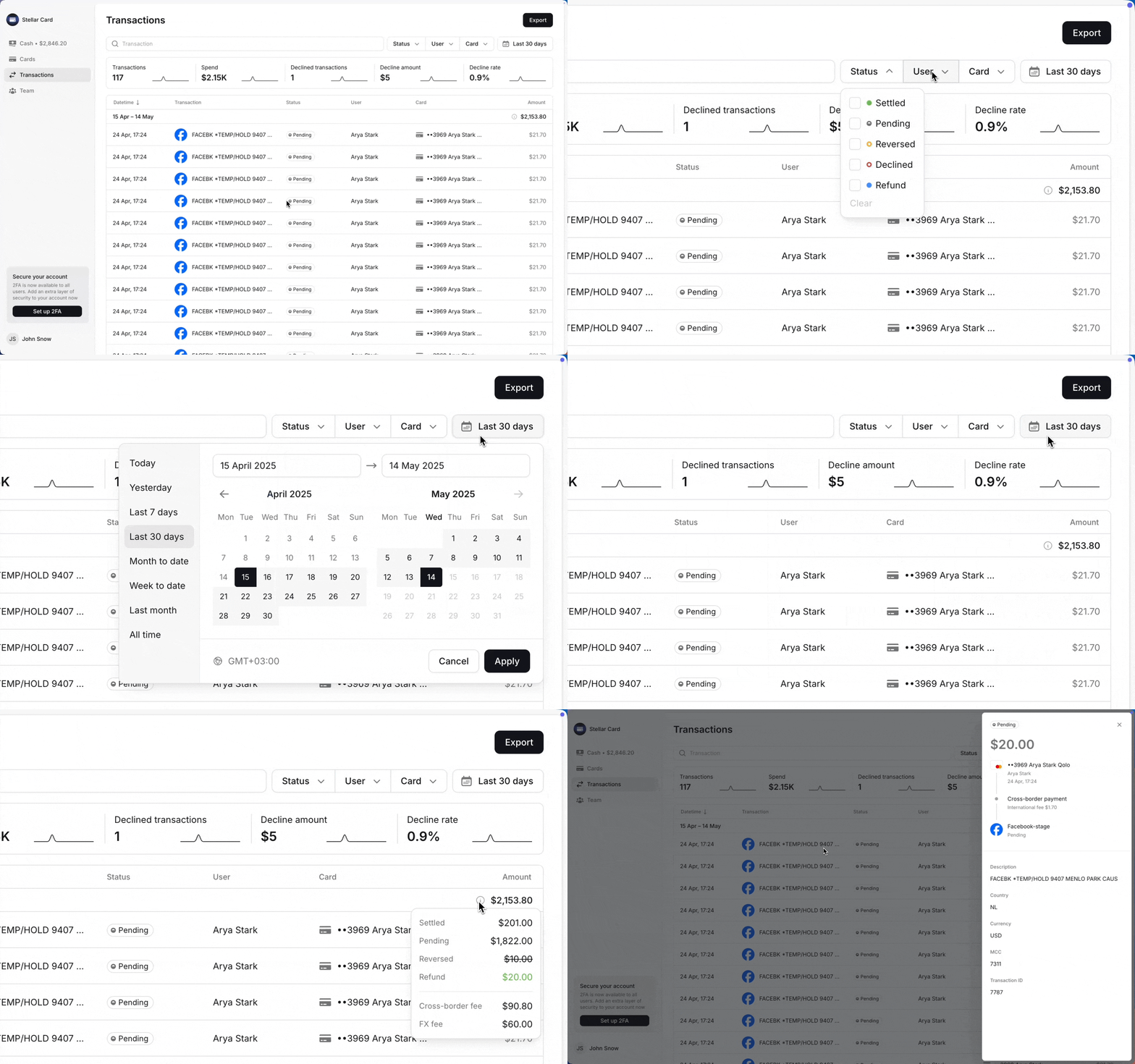
Below the filters, you'll find a table showing all transactions that match your selected filter criteria. The table includes these columns:
Date and Time
Description
Status
User
Card (last 4 digits and name)
Account (if there are sub-accounts with transactions)
Spend
Clicking a transaction row reveals these additional details:
Status change history
Description
Country
Currency
MCC code
Transaction ID
Account
Dates, times, and spend amounts are displayed in the time zone specified in your user settings.
Merchant confirmation codes can be found in the transaction description. Additional codes aren't needed since our cards use automatic 3DS authentication without OTP verification.
Transaction statuses
Transactions can have one of five statuses:
Pending — a temporary status (hold) where funds are reserved but the transaction is not yet completed.
Settled — final status: transaction is completed and funds are deducted from the balance
Reversed — final status: funds are returned to the balance as part of the original transaction
Refund — final status: funds are returned to the balance as a separate transaction
Decline — final status: transaction is rejected with no funds deducted.
Possible reasons for declining a transaction:
Card limit has been reached — the available card limit has been reached
User's limit reached — user's available spending limit has been reached
Insufficient funds in the account balance — not enough funds in the account balance
The card is inactive — the card is frozen, closed, or expired
The card does not support this type of purchase — merchant category (MCC) is not supported
The card does not support the specified country — transaction country is not supported
The card does not support the specified currency — transaction currency is not supported
The expiration date is invalid — the card details are incorrect
The transaction was declined for an unknown reason — transaction declined by third party (usually the merchant)
Your account is inactive — your account has been deactivated
The status changes when the merchant makes a decision. Before that, the system leaves it unchanged.
Export
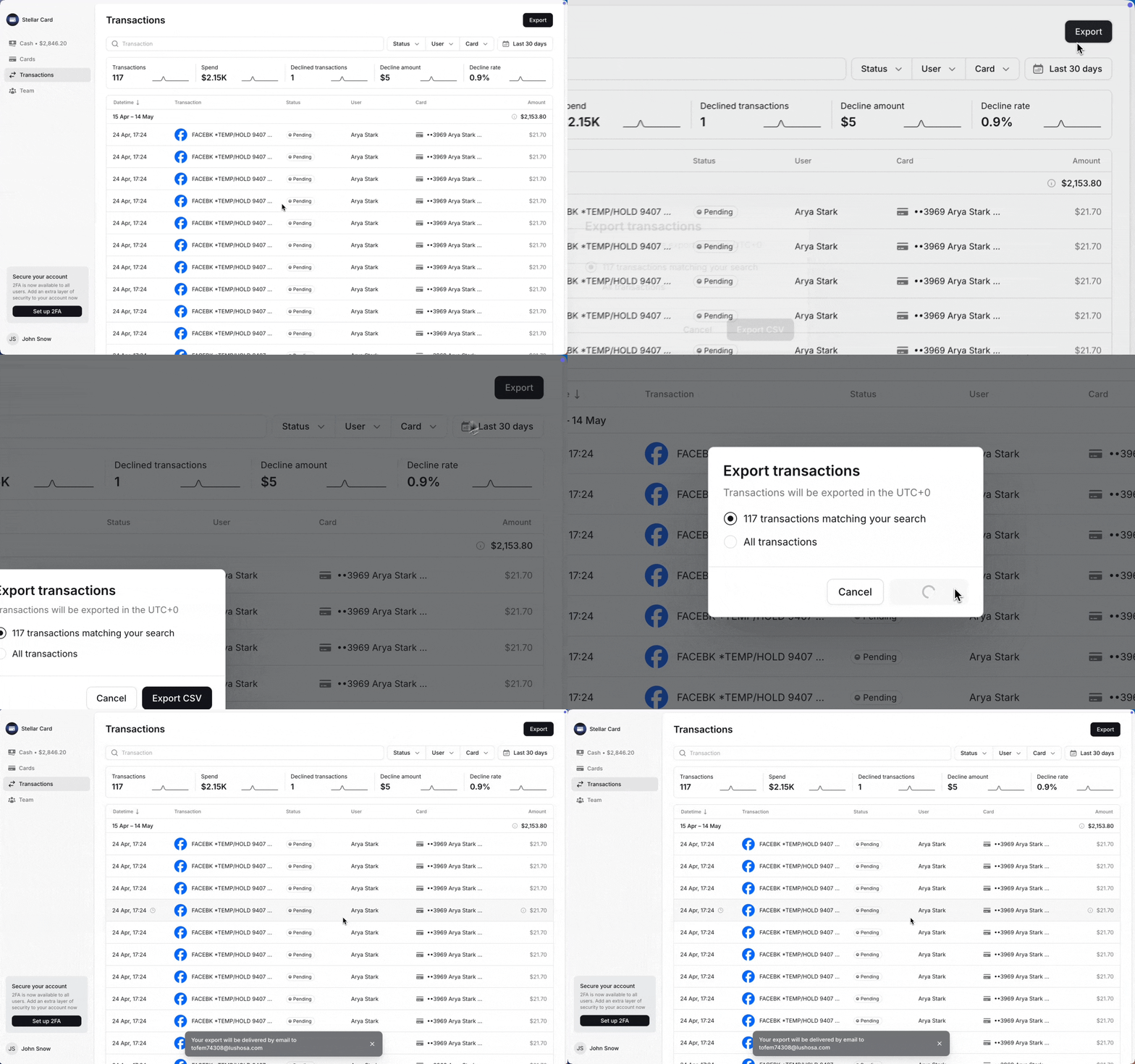
You can export the transaction table to a CSV file after configuring your desired filters.
The Export button is located in the upper right corner.
You can choose from two export options:
All transactions — exports the complete transaction history with no filters applied
Filtered results — exports only the transactions that match your current filter settings
A link to the CSV file will be sent to your profile email. All dates and times are in UTC+0. You can convert these to your local time using the TIME function in Excel or Google Sheets.